This is the fourth of five tasks in this section of the user manual that describe miscellaneous functions under the PCM Quotes > Operation menu.
The full list is:
- Queue Entries
- Documentation
- Price Analysis
- Queue Entries (this task)
- Contacts
The Queue Entries screen displays queue messages that have been sent and received for the PCM. Clicking an entry will open it.
NOTE: The sending/receiving and handling of Message Queues are covered in the System Setup User Manual.
View and/or Insert Queue Messages
- Search for and retrieve a PCM to work with. If you haven't done this already, see Retrieve an Existing PCM.
-
Select menu
 PCM quotes > Operation > Queue Entries.
- Click the PCM Quotes menu to expand it:

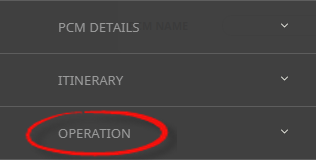
- Click the Operation menu option to expand it:

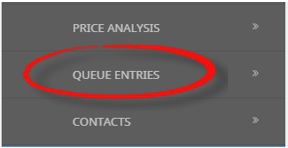
- Click Queue Entries to view and add messages for this PCM:

- Click the PCM Quotes menu to expand it:
-
On theQueue Entries screen, examine the list of queue messages, if any. This example shows no entries yet created.

-
To add a queue entry to the PCM, clickInsert.

-
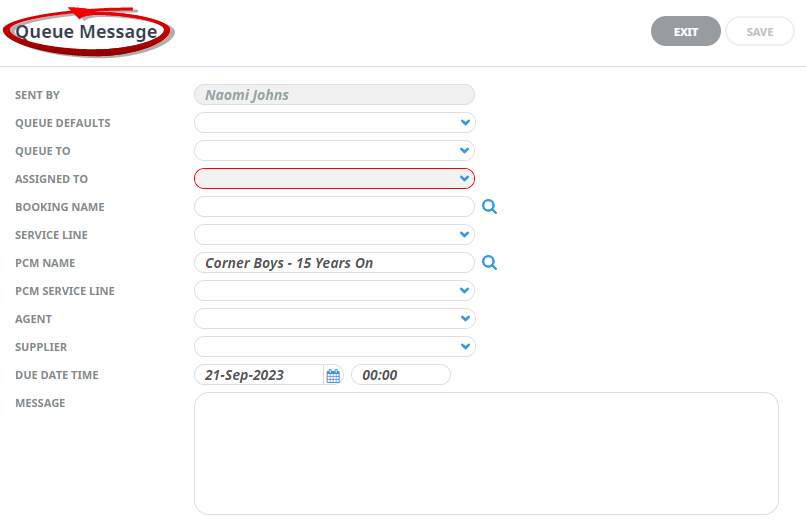
On theQueue Message screen, enter message details. Refer to About the Queue Message Fields for information on each of the fields on the Queue Message screen.
-
ClickSave to keep the changes.

-
ClickExit to discard any changes.


About the Queue Message Fields
Sent By
Queue entry sent by user name
Queue Defaults
A dropdown selection is available if Queue Defaults have been assigned in Code Setup.
Queue To
Queue name (if used).
Assigned To
User or Group queue is assigned to.
Booking name
Booking name, if you have a booking that this message relates to selection can occur - otherwise leave the field blank
Service Line
A drop down service selection will allow users to select the specific service this message relates to.
PCM Name
Name of PCM if queue relates to a PCM. If you have the PCM open and have used the PCM Quotes menu selection to select Queue Entries the PCM Name will automatically display in this field.
PCM Service Line
A drop down list of service selection will allow users to select the specific PCM service this message relates to.
Agent
Booking agent code and name.
Supplier
Service supplier code and name.
Queue due date and time.
Free format text field to store message text.
Filtering Previously Sent Messages
Messages can be searched for using the grey filter button. A screen opens with specific search filter criteria to show messages that have been previously sent.
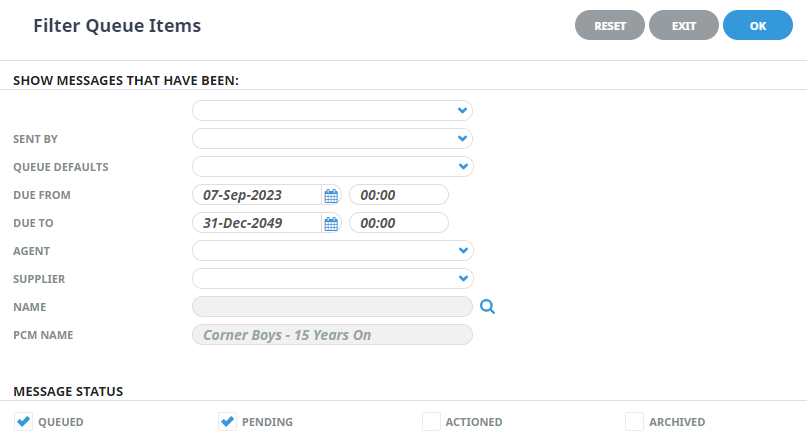
Filter Queue Items Fields
Sent To
A dropdown selection available to select who the queue message was sent to (either a User Name or a Group Queue Name).
Sent By
A dropdown selection available to select who the queue message was sent from (either a User Name or a Group Queue Name).
Queue Defaults
A dropdown selection available to select a pre-set Queue Default group.
Due From/To
Date and time selections to narrow the date time frame of when the queue was sent.
Agent
A dropdown selection available to select the Agent the queue message was sent to.
Supplier
A dropdown selection available to select the Supplier the queue message was sent to.
Name and PCM Name
The Booking Name/PCM Name fields are read only and populate from the booking/PCM open.
Message Status
Checkbox selection to filter and search for a Queue Message with a particular Message Status.